
How to Update SAML Configuration on iObeya When the IdP Certificate Changes

Context:

As an administrator of the iObeya platform, you may receive a notification from the Identity Provider (IdP) team informing you of a certificate change on their end. This article outlines the steps to update the SAML configuration with the new certificate.


Actions to Take:

  1. Request the IdP team to provide you with the public URL of the metadata XML file or, if the URL is not available, the new metadata XML file.
  2. Log in to the iObeya administration interface using an account with platform administrator rights.
  3. Navigate to the SAML configuration by selecting the "Configuration" menu, then choosing "Authentication Policies".
  4. Enable the default policy, ensuring that you have a local iObeya user with platform administrator rights to avoid getting locked out. Make note of the provided rollback URL, as it allows you to revert to the current policy if needed.
  5. Edit the policy containing the SAML mechanism by selecting the appropriate option.
  6. Within the SAML mechanism, in the "Configuration" section, enter either the public URL of the metadata XML file or import the new metadata XML file provided by the IdP team.

    Note: It is recommended to use the public URL instead of the file, as the URL remains valid during IdP certificate changes. This will save you from having to perform this procedure during the next certificate change.
  7. Save the changes made to the SAML configuration.

Once these steps are completed, the SAML configuration will be updated with the new IdP certificate. Users will be able to continue accessing iObeya using SAML authentication without interruption.


If you encounter any difficulties during this process or have additional questions, please feel free to contact our support team at support@iobeya.com.
Setup and maintenance

How to Update SAML Configuration on iObeya When the IdP Certificate Changes

When installing a new iObeya server, you will be asked for a license after starting the application. 

In order for the iObeya support team to generate a license for your server, you will need to send us a unique identifier called "ServerID". 

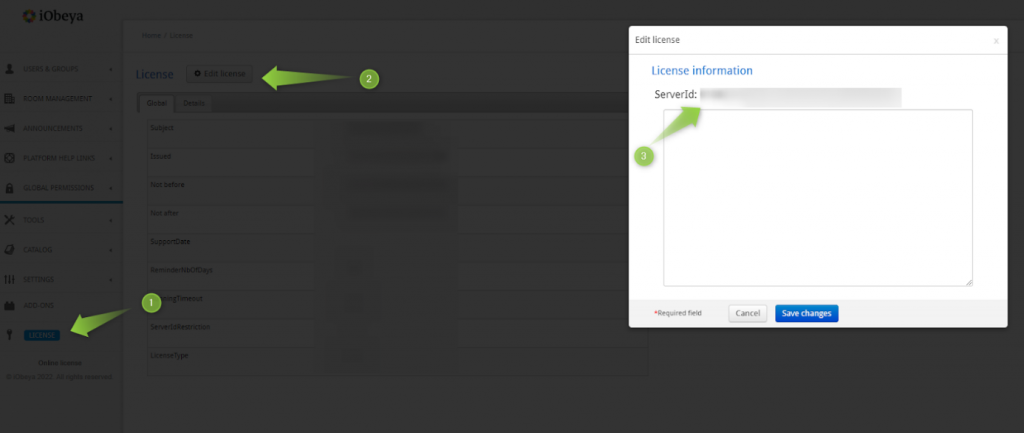
To find this identifier, you will need to log in to the administration interface. Then go to “License” menu and click on “Edit license”. A popup window will appears in which the serverID will be displayed

You will need to send this identifier to support via the address support@iobeya.com. 

Please note that it is strongly recommended to copy and paste this identifier rather than take a screenshot to avoid any mistyping that could happen. 

AdministrationSetup and maintenance

How to Update SAML Configuration on iObeya When the IdP Certificate Changes

Performance issues can have a major impact on the user experience, for example:

  • Slowness in logging on or accessing the application, a room or a board
  • Slowness in saving and taking into account modifications made by users
  • Failure to save certain user modifications
  • Total unavailability of the application
  • ...

There are two main causes of performance or slowness problems:

  1. Incorrect sizing of the platform in relation to its intended use
  2. Problems with communication and data transmission between user workstations and the server.

In any case, we will get back to you quickly to provide a workaround when possible.

First level of analysis on your side

We invite you to check the following points:

  • Dimensioning:
    • Check that your server's prerequisites are in line with your server's usage during peak periods.
    • Check your server's advanced configurations, particularly with regard to memory allocation and the various configuration parameters, especially with the database.
    • Check your monitoring data, which may indicate platform undersizing (CPU, RAM, etc.).
    • If you see discrepancies with our recommendations, we invite you to upgrade your platform to match the minimum technical requirements linked to your use of your iObeya platform.
  • Network :
    • If you can access the server directly, check whether these slowdown problems occur by accessing the application from the server itself (localhost). This will validate or invalidate the hypothesis of a network problem.
    • If the problems don't occur from the local host, it's a network-specific problem. In this case, check with your network technical teams to see if there are any network assets that could be causing slowdowns or bottlenecks.

Second level of analysis on the Support side:

Following the first analysis, and if you haven't identified any discrepancies between the recommendations and your server, please send us the following information to support@iobeya.com:

  • The context (including days and times) in which you are experiencing these slowdowns or performance problems. It's important for us to know whether you're experiencing these problems all the time or at a certain time of day.
  • Your feedback following the first analysis.
    Tomcat logs (available on the server in the Tomcat log folder)
  • In iObeya administration :
    • Application logs, in the “Tools/Download logs” menu
    • Your server's system information, in “Tools/System information” (the button is at the bottom of the page)
    • Monitoring information for this week/month in “Tools/Monitoring”, which you can print out as a PDF file.
    • Record a trace using your browser to help diagnose the problem by reproducing the slowness that was reported.
    • If you have your own monitoring system, or if you have activated JMX iObeya, you can also send us the results.

Once we've received all these elements, the support team will analyze the first elements provided and check whether there are any apparent reasons for the slowness.

Third level of analysis:

If there's nothing explicit or apparent on the face of the elements, or if the problem requires support in auditing and implementation, you'll be redirected to our technical consulting service for a more precise audit within a commercial framework.


The iObeya Support Team

AdministrationApplicationDebugQCDSetup and maintenance

I think I found a bug in iObeya, can you help me?

The iObeya Support Team will do its best to find a solution. So we need as much information as possible to be as efficient as possible and make basic, initial checks:

  • If an error message occurs, copy it (in text format)
  • Take a screenshot of your entire iObeya page. Make as much readable as possible
  • The context is important:
    • If you remember, explain to us the different steps you went through before encountering the issue.
    • If a screenshot/video is relevant, send it. Please note that a global view is the best, not just a focus of the situation.

If possible, ask your iObeya platform administrator to:

  • Download the logs from the menu "Tools/Download logs" in the administration, send them by telling us approximately the date & hour the issue happened.
  • Download the system information of your server from the menu "Tools/System information" in the administration (the button is at the bottom of the page).


Finally contact the iObeya Support Team to provide the collected information and we will help you.

AdministrationApplicationDebugJiraQCDSetup and maintenance

How to Update SAML Configuration on iObeya When the IdP Certificate Changes

When preparing an upgrade for example, it can be interesting to replicate the production environment on the pre-production one.


Be careful to contact the support@iobeya.com team because the license will not be valid on the new server (with a different serverID).


A\ Replication of the Production on the Pre-production


On the production server:


  1. Stop the Tomcat service

  2. Dump the iObeya database

  3. Save the assets directory in a zip file

  4. Start the Tomcat service.


On the pre-production server:


  1. New installation of iObeya and addons, with exactly the same versions of the pre-requisites, iObeya and addons as the Production

  2. Stop the Tomcat service

  3. Copy the assets to the assets folder (emptied)

  4. Import the Dump on the new server.

  5. Start the Tomcat service

  6. Quickly test that everything works


In principle, you can find this detailed procedure in the Backup & Restore documentation


Now that you have a replication of your production server, I strongly recommend that you perform a snapshot of the server. 


B/ Upgrading iObeya


  1. Stop Tomcat

  2. Update the prerequisites (Java, Mysql, Tomcat) to meet the Techinical Requirements

  3. Packaging of the new version of the application 

  4. Upgrade of the database

  5. Upgrade of the webapp/ configuration files

  6. Start Tomcat

Setup and maintenance